
Reordering Products in a Collection on a Schedule
Control the order products appear in a collection, on a timer. Put your promoted range at the top of the collection page for the weekend, then let it drop back — automatically.
Plan note: collection reorder is available on the Plus plan.
How it works
- Create a schedule and select Specific products — these are the products you want at the top.
- Drag the selected products into the order you want them to appear.
- Open the Collection reorder section and tick Reorder products in a collection to match this order.
- Choose the collection to reorder.
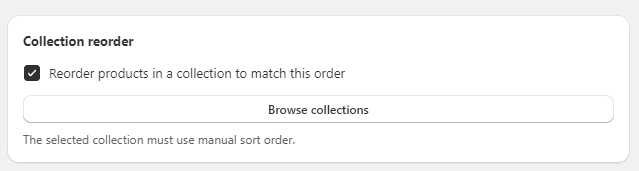
When the schedule runs, the chosen collection's product order is updated to match your list — your selected products move to the top, in your order.
Good to know
- The collection must use manual sorting in Shopify for a custom order to be visible (automated sort orders like "best selling" override manual positions).
- Combine it with the schedule's other actions — e.g. discount a product range and move it to the top of the collection for the duration of the sale.