
Discounting from the Compare-at Price
By default, a discount schedule calculates the new price from each variant's current price. On Pro and Plus, you can instead calculate it from the variant's compare-at price.
When would I use this?
When the compare-at price holds your "true" original price. A common scenario: you run sales back-to-back, and by the second sale the current price is already discounted. Calculating from the current price would stack the discounts; calculating from the compare-at price measures every sale from the same original.
Example: RRP (compare-at) $100, currently selling at $80.
- 25% discount from price → $60 (25% off the already-reduced price)
- 25% discount from compare-at → $75 (25% off the original $100)
How to set it up
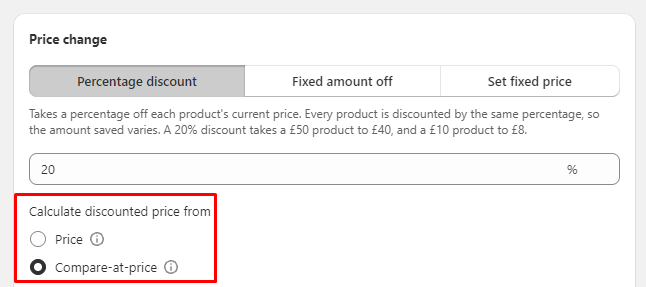
In your discount schedule, under Calculate discounted price from, choose:
- Price — discount from the variant's current price (default), or
- Compare-at-price — discount from the variant's compare-at price.
Variants without a compare-at price are skipped when discounting from compare-at — they keep their current price. Make sure your products have compare-at prices set if you rely on this mode.
Good to know
- This setting controls where the discount is measured from. The separate compare-at price options control what customers see struck through during the sale — see Scheduling a Discount.
- Reverts work as normal: at the end of the schedule, prices return to what they were when it started.