
Starting from a Template
Templates are a quick way to set up a schedule. Pick one and we'll open the schedule screen with the right schedule type already selected and the main settings filled in for you — you just choose your products and adjust anything you want to change.
You'll find them on your dashboard under Start with a popular template.
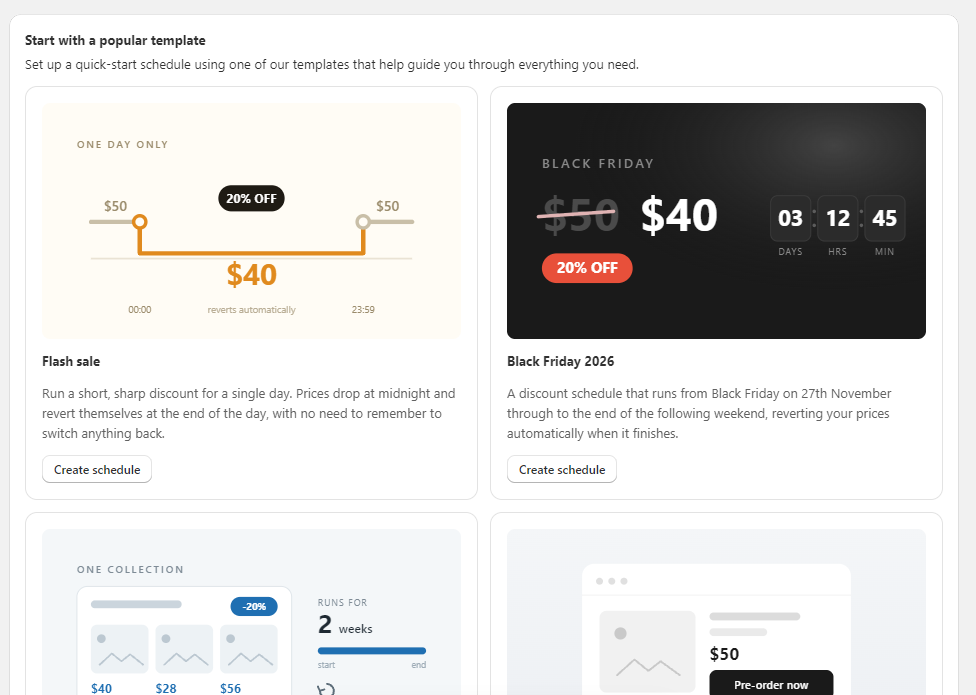
Click Create schedule on any template to get started.
What a template does
A template is a starting point, not a locked-in setup. Everything it fills in can be changed before you save, and once you've saved, the schedule behaves exactly like one you'd built from scratch.
When you open a template you'll see a card in the right-hand column explaining what that particular template has set up and what you still need to do.
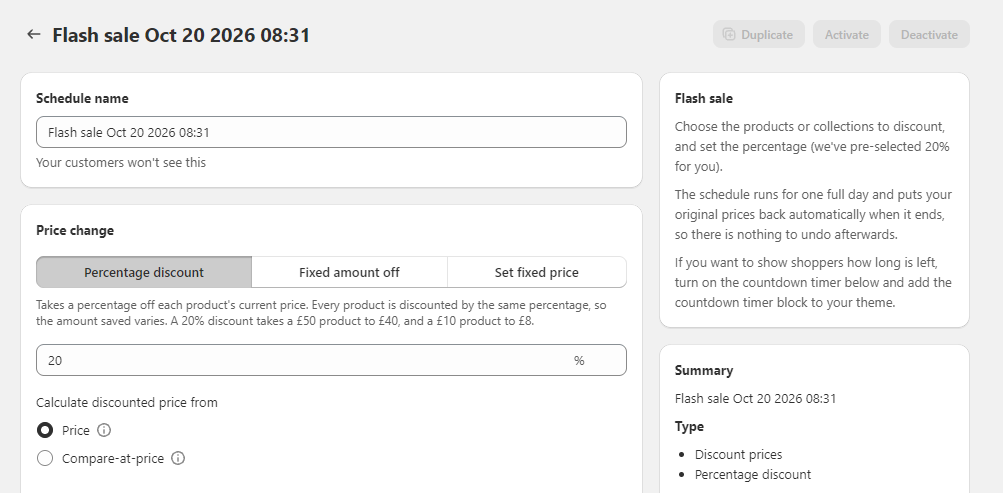
Every template leaves the products for you to choose, because only you know which ones the schedule should affect. See Selecting products for your schedule.
The templates
Flash sale
A 20% discount running for a single day, from midnight to 23:59. It's set to run tomorrow, and your original prices are put back automatically at the end of the day, so there's nothing to remember to switch back.
Change the percentage, the date or the length to suit — the one-day window is just a starting point.
Black Friday 2026
A 20% discount running from Black Friday, 27 November 2026, through to the end of the following weekend. The compare-at price is set while the sale runs, so shoppers see the original price struck through.
We'd suggest creating a collection for your Black Friday products and pointing the schedule at that, rather than selecting products individually.
This template disappears from your dashboard once Black Friday has passed.
Seasonal collection sale
A 20% discount on a whole collection for two weeks. Useful for a summer sale, an end-of-season clearance, or any seasonal promotion.
This one is set to target a collection rather than individual products. Anything added to that collection before the sale starts is included automatically — see Live vs snapshot collections for how that works.
Product pre-order
Publishes products at a future date and tags them preorder , so they can be sold as pre-orders.
This one needs the PreProduct app as well as Auto Schedule. Auto Schedule publishes the products and applies the tag; PreProduct turns the tagged products into pre-orders. You'll need to set up a template in PreProduct with its condition set to the preorder tag.
Two things to check: your products should start in draft state, and the publish date (set to a week from now) should be when you want them to go live.
Product drop
Keeps products visible on your storefront but not purchasable until a set date and time, with a countdown timer ticking down to the drop.
The schedule's end date and time is the moment of the drop — that's when the products become available to buy. It's set to a week from now by default, so change it to your real drop time.
Countdown timers can go anywhere on your site. To place one outside the product or collection page, save the schedule first, then copy the countdown timer ID from the schedule page and paste it into the block in your theme customizer. See Countdown timer.
Menu rotation
Publishes a set of products on Monday morning and unpublishes them on Friday evening, repeating every two weeks. Built for meal-delivery menus that alternate.
To run a full rotation, set this one up with your first menu and save it. Then use the Duplicate button at the top of the schedule page to make a copy, and set the copy to start the following Monday with your second menu. The two schedules will then alternate. (Duplicate only becomes available once a schedule has been saved.)
Why can't I see all the templates?
The templates you see depend on your plan. If a template relies on a feature your plan doesn't include, we hide it rather than show you a schedule you wouldn't be able to save:
- Menu rotation needs repeating schedules
- Product pre-order needs tag scheduling
- Seasonal collection sale needs collection scheduling
- Product drop needs the product drops feature
If a template is only partly affected — for example, your plan doesn't include countdown timers but everything else works — we'll still show the template and simply leave that option off.
Can I still create a schedule from scratch?
Yes. The Create schedule button at the top of the screen works exactly as before, and templates don't change anything about how schedules run. See Setting a schedule.